Switch Craft: Giving Two Work Laptops One Very Good Keyboard

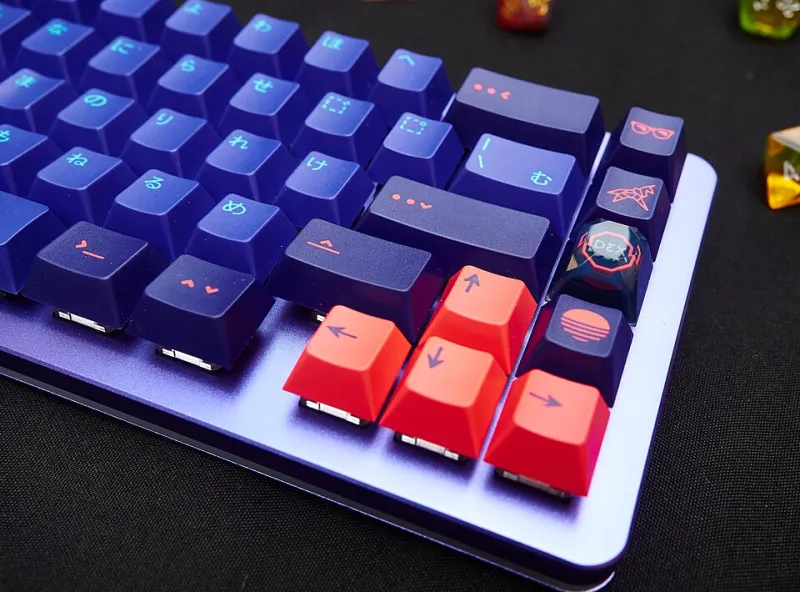
Photo by Photo by Caspar Camille Rubin on Unsplash on Unsplash
The spare room has quietly become the most contested square metre in the house. On one side, the work-issued laptop with its mysterious corporate build; on the other, your own machine, the one with the keyboard you actually chose. The temptation is to unplug and replug the USB-C cable forty times a day. The better answer is to make the keyboard the fixed point and let everything else move around it.
That's a switching problem, and there are four decent ways to solve it. None of them are expensive by custom-keyboard standards, which is either reassuring or a warning, depending on how your bank balance looks this month.
Decide What You're Actually Switching First
KVM stands for keyboard, video, mouse — but plenty of people only need the K and the M. If your monitor already has two inputs and a button on the bezel, you don't need a switch that handles video at all. If you're running two screens, or a display that sulks when it loses EDID, the calculus changes.
So: write down what moves between laptops. Just peripherals? Peripherals and one monitor? Peripherals and two monitors plus a webcam and a headset? That list decides your budget far more than brand loyalty will.
The Four Routes, Ranked by Faff
1. A plain USB peripheral switch. A small box with two USB-B inputs and a couple of USB-A outputs, switched by a button or a hotkey. Kenable and Lindy both sell sensible ones; Amazon UK is thick with them. Cost is typically £20–£50. Simple, mostly reliable, and the failure mode is usually a device that doesn't re-enumerate when you flip back. Test that early.
2. A proper KVM. Now you're adding HDMI or DisplayPort, and the price climbs to £70–£250. Watch the spec sheet for display bandwidth, HDCP handling and whether it fakes EDID to the inactive machine. A KVM that lies about EDID keeps Windows from reshuffling your windows every time you switch, which is worth paying for.
3. Docking stations plus a monitor hub. One dock per laptop, both feeding the monitor, and the keyboard plugged into the monitor's own USB hub. Many monitors tie that hub to the active input, which means the monitor is quietly doing KVM duty for free. Check the manual before you buy anything — this is the single most overlooked trick on the list.
4. Software. Input Leap, Barrier and Synergy all let one keyboard drive two machines over the network. Mouse Without Borders is Windows-only. They're free or cheap and they work well right up until you need to type a BitLocker PIN, get into BIOS, or deal with a corporate laptop that blocks the necessary network traffic. Which brings us to the awkward part.
Hotkeys, Hubs and the NKRO Trap
Most switches default to a hotkey like Ctrl+Ctrl or double-tap Scroll Lock. Both will eventually collide with something — usually a game, occasionally an IDE. Remap it on day one rather than discovering the conflict mid-presentation.
The subtler issue is how the switch presents your keyboard to the host. Cheap KVMs emulate a generic keyboard rather than passing the device through. That's fine for typing a report and miserable for anything else: media keys, unusual modifiers and per-device software can all fall over. Your QMK layers still work, because those live on the board, but anything the host needs to recognise about the keyboard may not survive the translation.
If your board is heavy on RGB or has a screen, check whether the switch can supply enough current. A bus-powered switch and a bright board is a recipe for flicker. A powered hub in the chain usually sorts it.
When the Work Laptop Says No
Corporate builds are the real gatekeepers. Expect some combination of no admin rights, USB device control that whitelists by vendor and product ID, and an endpoint agent that raises a ticket the moment an unfamiliar hub appears. A KVM presents its own IDs, so your keyboard's identity effectively vanishes — which is fine for typing and useless for any vendor utility.
Ask IT before you buy, and phrase it plainly: "may I attach a USB switching device for a keyboard and mouse?" The answer is usually yes, because HID devices are rarely the thing security teams lose sleep over. What they do care about is mass storage, so avoid switches with an SD card slot bolted on. Test the whole setup on the work machine inside the returns window, not a fortnight after it closes.
One genuine advantage of hardware switching over software: it survives pre-boot. BIOS, BitLocker PINs and boot menus all need a keyboard the machine can see before any operating system exists.
Cables, Labels and the Spare-Room Reality
Buy cables that are the right length rather than the cheapest, and label both ends. Masking tape and a biro is fine; a £15 label maker is nicer. Colour-code the two machines — blue for work, red for personal — and keep a small hand-drawn diagram taped inside the desk drawer for the day something stops working and your patience is thin.
Leave slack loops behind the desk so you can pull the switch forward without unplugging anything, and use hook-and-loop ties rather than cable ties. Zip ties in a rented flat are a decision you'll regret at moving-out time.
Buying in Britain, and Sending It Back
Scan, Overclockers UK, CCL, Ebuyer, Box and Amazon UK all stock the usual suspects. Lindy and Kenable are good for cables and plain switches; RS and Farnell carry industrial-grade kit but often sell business-to-business, which matters because the Consumer Contracts Regulations 2013 — your 14-day right to cancel an online order — are aimed at consumers, not trade buyers. Check whether the listing is trade before you assume you can change your mind.
If something arrives faulty, the Consumer Rights Act 2015 gives you a 30-day short-term right to reject, then a repair-or-replace route. Keep the box until you're certain. It costs nothing to store and saves an argument.
A Sensible Order of Operations
Start with the monitor hub if yours has one. If not, a USB switch plus manual input selection on the display will handle most two-laptop desks for under £60. Only escalate to a full KVM if you genuinely need video switching at the press of a button, and only consider software if both machines are yours to configure.
The keyboard stays put. Everything else is negotiable.